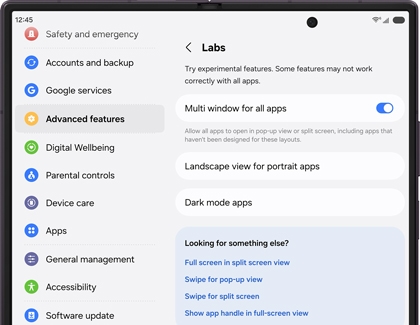
If you’d like to try some of these Labs features, navigate to and open Settings, tap Advanced features, and then tap Labs. You'll see some or all of the following options, depending on your phone:
- Multi window for all apps: This allows all of your apps to open in a pop-up or split screen view, even if the apps haven't been designed for this layout.
- App screen zoom: You can set a separate screen zoom level for each app.
- Landscape view for portrait apps: You can have some apps that normally open in portrait mode appear in landscape mode on the main screen of Z Fold phones. Just tap the switch next to each app you'd prefer to have a wider view of.
- Dark mode apps: Choose apps that will always use Dark mode, regardless of your phone’s default mode.
- Full screen in split screen view: Hide the status and navigation bars so you can view more of each app screen. To show the bars, swipe up from the bottom of the screen or swipe down from the top of the screen.
- Swipe for pop-up view: Enable a swipe gesture for pop-up view. Swipe from the top left or right corners to the middle of the screen to change an app window to pop-up view.
- Swipe for split screen: Enable a two-finger swipe gesture for split screen view. Swipe from the side or bottom of the screen to change an app window to split screen view. Swipe again to switch apps.
- Show app handle in full-screen view: You can show or hide the multi-window app handle when viewing it in full-screen mode.



