Adjust call settings on your Galaxy phone

Customizing call settings on your Galaxy phone allows you to enhance your calling experience and tailor it to your preferences. Whether you want to block unwanted calls, enable call recording, or manage call forwarding, here’s a comprehensive guide to help you adjust call settings effectively. 

Adjust call settings on your Galaxy phone

Access call settings

  1. Open the Phone app from the Home screen on your Galaxy phone.
    Phone app icon highlighted on the Galaxy Z Flip7 Home screen.
  2. Tap the More options (the three vertical dots) icon in the top right corner of the screen.
    Three-dot menu selected in the Phone app on the Galaxy Z Flip7.
  3. Tap Settings from the menu.
    Call settings menu open in the Phone app on the Galaxy Z Flip7.
Read less

Block unwanted calls

Block numbers

  1. Open the Phone app from the Home screen on your Galaxy phone.
    Phone app icon on the Galaxy Z Flip7 Home screen.
  2. Tap the More options (the three vertical dots) icon in the top right corner of the screen.
    More options menu in the Phone app on the Galaxy Z Flip7.
  3. Tap Settings, and then tap Block numbers.
    Call settings menu on the Galaxy Z Flip7 with Block numbers option highlighted.
  4. Tap the switch next to Block calls from unknown numbers to block calls from unknown or unspecified numbers.
    Block numbers screen on the Galaxy Z Flip7 with Block calls from unknown numbers enabled.
  5. To block a specific number, tap the Add phone number text field, enter the number, and then tap the Add (plus) icon to add the number to your blocked list.
    Add phone number option on the Block numbers screen of the Galaxy Z Flip7.
  6. Alternatively, you can tap Recents, Message, or Contacts to select a number to block.
    A blocked phone number shown on the Block numbers screen of the Galaxy Z Flip7.
Note
Feature not available on all models.

Block Spam calls

  1. Open the Phone app, tap More options (three vertical dots), and select Settings
    More options menu in the Phone app on the Galaxy Z Flip7.
  2. Turn on the switch next to Caller ID and spam protection to enable the feature.Caller ID and spam protection menu in the Phone app on the Galaxy Z Flip7.
  3. Review the terms of service and privacy policy, then tap Agree.
    Caller ID and spam protection terms of screen and privacy policy pop-up on the Galaxy Z Flip7.
  4. Now, tap Caller ID and spam protection, then turn on the switch next to Block spam and scam calls, and then choose your preferred option: 
    Block spam and scam call menu on the Galaxy Z Flip7.
    • Block all spam and scam calls: To block all identified spam or scam calls, regardless of risk level.
    • Only block high-risk scam calls: To block only the most dangerous or fraudulent calls, allowing less severe spam calls to come through.
  5. When your phone rings, tap Block/Report number at the bottom of the screen during or after the call. 
    • To block a number, tap Block number to add it to your blocked call list.
    • To report a fraudulent call, tap Report Number, select a category, and include a comment if desired. Tap Report when finished.


With Smart Call, you can stay protected from spam and scams while maintaining control over your calling experience.

Note
The feature is on by default.

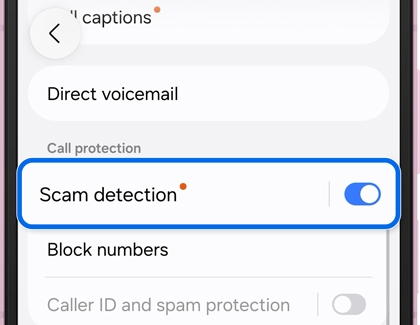
Enable Scam detection

Tap Scam detection, and then ensure the switch at the top of the screen is enabled.

A Galaxy phone showing the Scam detection settings screen with the On toggle switch highlighted in blue and turned on.

Read less

Adjust Call recording settings

Note
Call recording is available in the Samsung Phone dialer app on select Galaxy phones running Android 15 with One UI 7.0 or higher. Features may vary.
  1. Open the Phone app, tap the More options (three vertical dots) icon, and then tap Settings.
    Phone app icon highlighted on the Galaxy Z Flip7 home screen.
  2. Tap Record calls, then tap Transcript assist.
    Transcript assist option in the Record calls menu on the Galaxy Z Flip7.
  3. Tap Summarize transcripts, and then turn on the switch at the top to generate summaries. Optionally, turn on the switch next to Process data only on the device for privacy.
    Summarize transcripts option enabled in Transcript assist settings on the Galaxy Z Flip7.
  4. Tap the Back icon in the top left corner of the screen, then turn on the switch for Auto detect language.
    Auto detect language toggle enabled in voice recording transcription settings on the Galaxy Z Flip7.
  5. Turn on the switch for Auto transcribe recorded calls.
    Auto transcribe recorded calls option enabled in call recording settings on the Galaxy Z Flip7.
  6. Tap Transcription language and select your desired language.
    Transcription language set to English in call recording settings on the Galaxy Z Flip7.
  7. Tap Language packs for transcription and translation, then download your preferred language packs.
    Language packs for transcription and translation shown in call recording settings on the Galaxy Z Flip7.
  8. Tap the Back icon at the top left corner of the screen twice to return to the Record calls screen.
    Back arrow highlighted in Transcript assist settings on the Galaxy Z Flip7.
  9. Turn on the switch for Show notification after recording to receive a notification after recording a call.
    Show notification after recording toggle enabled in Record calls settings on the Galaxy Z Flip7.

During an active call, tap the Record icon (the T on the left side) to start recording the call. Check out our guide to learn more about how to record phone calls on your Galaxy phone.

Read less

Turn on Wi-Fi calling

Note
You must be connected to a Wi-Fi network and have active service via a SIM or eSIM to enable Wi-Fi Calling.
  1. Open the Phone app, tap the More options (three vertical dots) icon, and then tap Settings.
    Call settings menu on the Galaxy Z Flip7 with Settings highlighted.
  2. In the Call Settings menu, tap Wi-Fi calling.
    Wi-Fi Calling option shown in call settings on the Galaxy Z Flip7.
  3. Turn on the switch at the top of the screen, and then set your Roaming network preferences and update your Emergency address.
    Wi-Fi Calling turned on in settings on the Galaxy Z Flip7.
Read less

Change the call volume

During a call, press the Volume buttons on the side of your phone to adjust the call volume.

Incoming call screen on the Galaxy Z Flip7 showing the call volume slider and Call assist option.

Read less

Customize sound and vibration setting

To switch between Sound mode and Vibration mode, go to and open your device's Settings, and then tap Sound and vibration. At the top of the menu, you can choose from the following options:

A Galaxy Z Flip7 showing the Sounds and vibration menu with Sound selected.

  • Sound: Enables both sound and vibrations for calls and notifications.
  • Vibrate: Enables vibration for calls and notifications.
  • Mute: Disables sound and vibrations, keeping the phone silent for calls and notifications.

To customize additional settings:

  • Tap Vibrate while ringing to turn on or off vibration for incoming calls when your phone is in Sound mode.
  • Tap Ringtone to adjust the ringtone volume and set a sound for incoming calls.
  • Tap Call vibration to control the vibration intensity and set a vibration pattern.
Read less

Set call exceptions for Do not disturb mode

  1. Navigate to and open Settings, and then tap Notifications.
    Notifications settings on the Galaxy Z Flip7 with Notifications highlighted.
  2. Tap Do Not Disturb, and then turn on the switch next to Do Not Disturb.
    Do not disturb settings on the Galaxy Z Flip7 with the switch turned on.
  3. To set a schedule, tap Add schedule, enter a name. Next, set a specific day and time period, then tap Save.
    Do not disturb schedule options on the Galaxy Z Flip7 showing Add schedule.
  4. To set a call exception, tap Calls and messages in the Allowed during Do not disturb section. Next, choose Allow only select contacts or Allow all except selected contacts. Then, tap Add contacts to select specific contacts.
    Do not disturb settings on the Galaxy Z Flip7 showing Add contacts under Calls and messages.
  5. Tap Calls, and then choose to allow calls from All, Contacts only, Favorite contacts only, or None.
    Do not disturb settings on the Galaxy Z Flip7 showing allowed callers menu with options for All, Contacts only, Favorite contacts only, or None.
  6. To allow calls from the same phone number received more than once within 15 minutes, turn on the switch next to Repeat callers.
    Do not disturb settings on the Galaxy Z Flip7 showing Repeat callers option enabled.
  7. To manage notification visibility, tap Hide notifications and select what notifications will be hidden when the screen is on or off.
    Do not disturb settings on the Galaxy Z Flip7 with Hide notifications highlighted.
Read less

Manage voicemail

Note
The options vary by carrier, but you can usually access your voicemail through the Phone app. Please contact your carrier for additional questions and information.

Set up voicemail

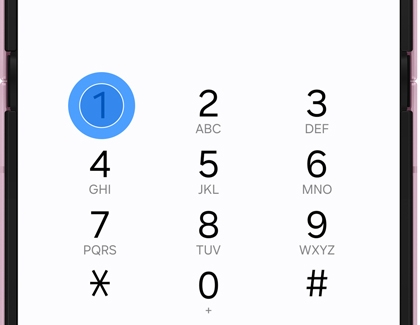
To set up your voicemail for the first time, open the Phone app, and then touch and hold the number 1. Follow the tutorial to create a password, record a greeting, and your name.

Galaxy phone dial pad showing the number 1 key highlighted.

Set up visual voicemail

To set up visual voicemail, open the app on your phone. The name and icon may vary by carrier. Review the details, and then tap Continue, grant the required permissions, and then review the welcome message. Tap Continue and follow the prompts to complete setup.

Enable Direct voicemail

  1. Open the Phone app.
  2. Tap on the More options icon (three vertical dots).
    Galaxy phone screen showing the phone app with the three vertical dots menu icon highlighted.
  3. Tap Settings.
  4. Tap Direct voicemail.
    Phone settings screen with Direct voicemail highlighted.
  5. Tap the switch at the top of the page to enable Direct voicemail.
    Direct voicemail settings page with the On toggle switch highlighted.
  6. After enabling Direct voicemail, tap Agree to accept the terms and conditions.
  7. During an incoming call, swipe up to access More options
  8. Select the Direct voicemail option.
    Galaxy phone screen showing More options with Direct voicemail highlighted.
  9. The voicemail greeting will begin, allowing the caller to leave a message for you.
Notes
  • Direct voicemail only works when your phone is on and connected to your mobile network. Normal call rates apply.
  • Direct voicemail doesn’t work for video calls. Direct voicemail might not work if your phone’s internal storage is almost full.
Read less

Enhance calls with Call assist

Call screening

  1. When receiving a call, tap Call assist, and then tap Call screening.
    Incoming call screen with Call assist highlighted.
  2. The AI assistant will answer the phone on your behalf and the caller will be asked to state the purpose of their call. As the caller speaks, their response is displayed as text on your screen in real time.
    Call screening screen showing a real-time transcript of a caller saying Just checking in.
    Note: You can automatically screen suspicious or unknown calls by turning on auto call screening in Call settings.

Text call

  1. During or when receiving a call, tap the Call assist icon, and then tap Text call.
    Incoming call screen with Call assist highlighted.
  2. Tap a preset quick response or type a custom message to respond to the caller.
    Text call interface showing quick responses and text input box.

Live translate

  1. During an active call, tap the Call assist icon, and then tap Live translate.
    Active call screen with Call assist highlighted.
  2. Select the appropriate languages for both you and the caller to begin real-time translation.
    Live translate interface with language selection options.
Read less

Adjust Flip options

Turn off the speaker when the phone opens

  1. With the phone open, navigate to and open the Phone app.
  2. Tap the More options icon (the three vertical dots) in the top right corner, and then tap Settings.
    Phone app settings menu on a Samsung Galaxy device highlighting Settings.
  3. Tap Flip Options, and then tap Turn off speaker when phone opens to enable the switch.
    Samsung Galaxy call settings showing multiple flip options including Turn off speaker when phone opens.

The speaker will now be automatically disabled when you open the phone during a call.

Turn on the speaker when the phone closes

  1. With the phone open, navigate to and open the Phone app.
  2. Tap the More options icon (the three vertical dots) in the top right corner, and then tap Settings.
    Samsung Galaxy phone call settings screen showing the option Turn on speaker when phone closes.
  3. Tap Flip Options, and then tap Turn on speaker when phone closes to enable the switch.
    Samsung Galaxy phone call settings screen with Turn on speaker when phone closes toggle enabled.

The speaker will be enabled when you close the phone during a call.

Close the phone to end calls

  1. With the phone open, navigate to and open the Phone app.
  2. Tap the More options icon (the three vertical dots) in the top right corner, and then tap Settings.
    Galaxy device home screen with Settings app highlighted.
  3. Tap Flip Options, and then tap Close phone to end calls to enable the switch.
    Flip options menu with Close phone to end calls toggle turned on.

Phone calls will automatically end when you close the device.

Read less
Was this content helpful?
Table of contents
We're here for you

Contact Samsung Support

Contact us online through chat and get support from an expert on your computer, mobile device, or tablet. Support is also available on your mobile device through the Samsung Members App.

